
Find a show you can go to right away!
Nearby Performances
User Guide
This function can be used on a smartphone (browser, app).
Available.

What are the performances near me?
Where I am now near The performance will be held at
easy This is a feature found in.
"Search for performances from your current location" of
Just tap
There are performances you can go to right away
You'll find it!
How to use
-
Step1
Ticket PIA TOP
Tap "Find performances from your current location"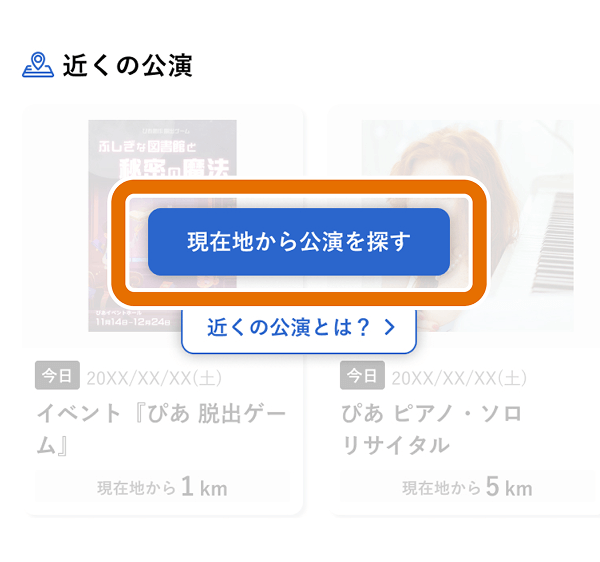
-
Step2
If a location permission pop-up appears, tap "Allow."
*Permission may be required for both your browser and t.pia.jp (Ticket PIA).
*If the location information usage pop-up does not appear, please change the settings on your device using the steps in the "If you have any problems" section at the bottom.
In a browser
[iOS]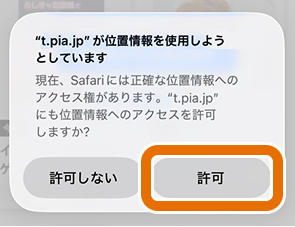 [Android]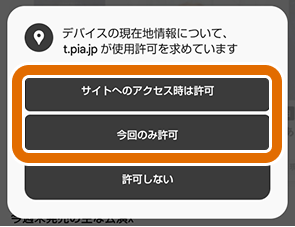
For apps
[iOS]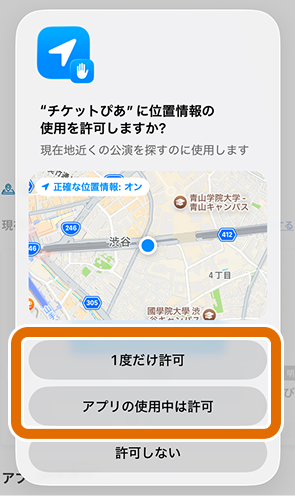 [Android]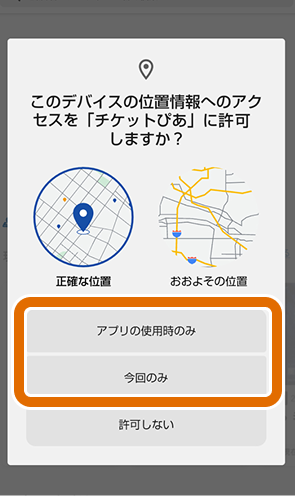
-
Step3
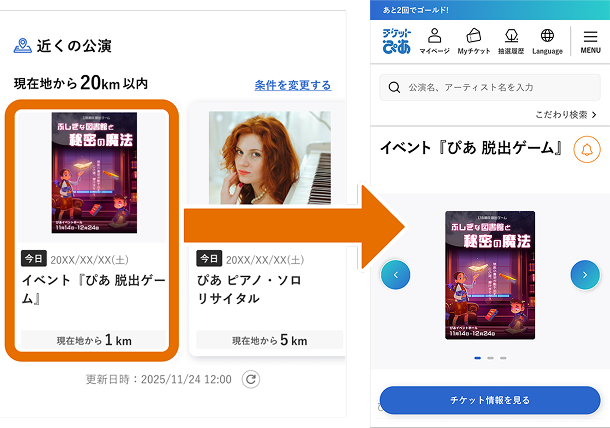
In order of proximity to your current location,
Showing performances you can attend right away!
Once you tap on the performance you are interested in, you can proceed to purchase tickets.*Please check the performance time and location before purchasing.
*Depending on the performance, issue locations may be specified.
-
Step4
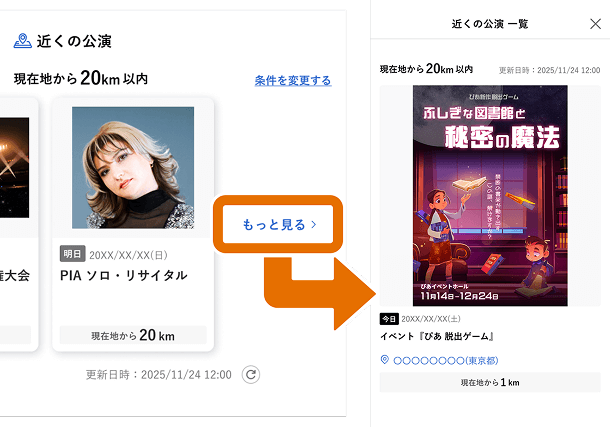
If you have more than 6 performances nearby, you can see a list of performances that meet your criteria in See More.
-
Step5
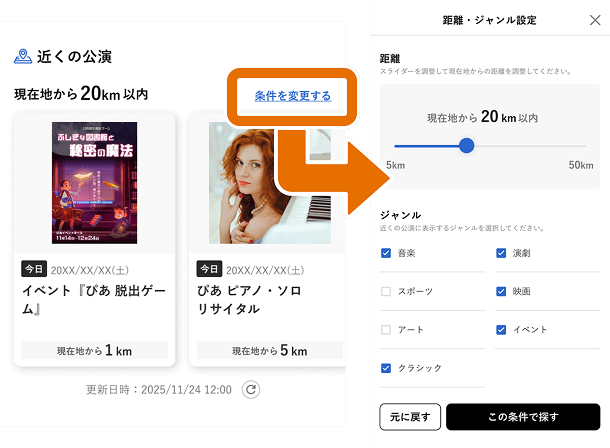
Click "Change conditions"
You can change the search criteria on the "Distance/Genre Settings" screen.*You can tap "Restore" to return to the default settings.
-
Step6
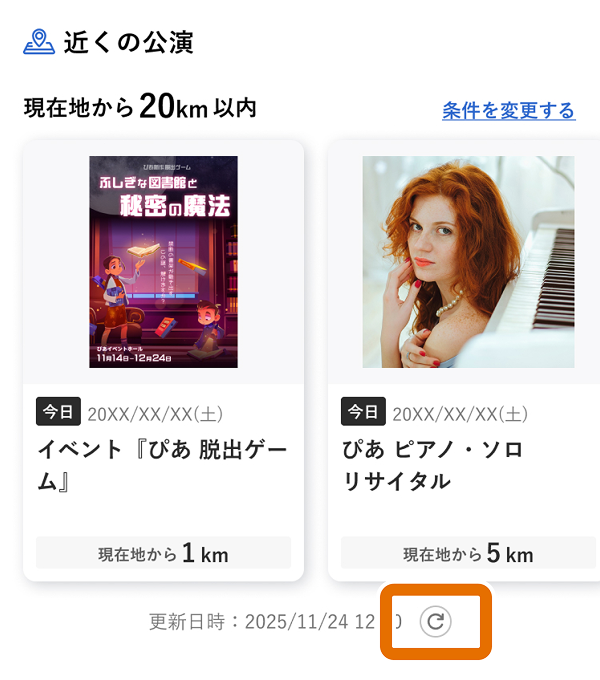
If the date, time, or location changes, you can tap the update button to update to the current performance information.
New fun
Ticket PIA found in !
Immediately use "Nearby Performances"
Let's look for performances!
Find a show near you
Available.
If you need help
Q 近くの公演が利用できない(iPhone・Safariなどのブラウザ)
Please make sure you are using the recommended environment and then check the following two location information usage settings.
Permissions for Safari
(1) From the Settings app, go to "Privacy & Security" → "Location Services."
(2) Turn on Location Services and select your browser, such as "Safari Websites."
(3) Select "While using this app" or "Always."


Ticket PIA Permission to Use the Site
(1) In the Ticket PIA TOP, press the icon on the left side of the address bar.
(2) Press the "..." icon on the right.
(3) Set "Location" at the bottom of the page menu to "Allow". Close the menu and update the Ticket PIA TOP.


※以上の設定で解決しない場合は、以下の手順でCookie情報の削除もお試しください。
(1) 「設定」アプリ下部から「アプリ」→「Safari」の順に進みます。
(2) 最下部の「詳細」→「Webサイトデータ」の順に進みます。
(3) 右上の「編集」を押し、「pia.jp」を削除します。再度「Safari」を開いて、チケットぴあTOPを更新してください。
Q 近くの公演が利用できない(Android・Chromeなどのブラウザ)
Please make sure you are using the recommended environment and then check the following two location information usage settings.
Permissions for Chrome apps
(1) Go to "Location" in the "Settings" app.
(2) Turn on "Use location" and select your browser, such as "Chrome," from "Allow apps to use your location."
(3) Select "Allow only while using the app" or "Ask every time."


Ticket PIA Permission to Use the Site
(1) In the Ticket PIA TOP, press the icon on the left side of the address bar.
(2) Press "Permissions".
(3) Press "Location" and change it to "Allowed". Close the menu and update the Ticket PIA TOP.


Q not available for nearby performances (iPhone/ Ticket PIA app)
Please check whether you are operating from the recommended environment and check the following two location settings.
(1) From the "Settings" app, go to "Privacy & Security" → "Location Services".
(2) Turn on location services and press "Ticket PIA".
(3) Select "While using this app" or "Check next time or when sharing".


Q QIs not available for nearby performances (Android/ Ticket PIA app)
Please check whether you are operating from the recommended environment and check the following two location settings.
(1) From the "Settings" app, go to "Location".
(2) Turn on "Use location" and select "Ticket PIA" from "Allow apps to use location information".
(3) Press "Allow only while using the app" or "Check every time".


Ticket PIA Official App
Download now!


Google and Google Play are trademarks of Google LLC.